Sort “My Sites” Menu Alphabetically

If you have a WordPress Network and you use the My Sites menu a lot, you might wish the list was sorted alphabetically, rather than by site ID.

Here’s how you can reorder that list

Method 1: Modify the Admin Bar/Toolbar directly

add_action('admin_bar_menu', 'reorder_my_sites');
function reorder_my_sites( $wp_admin_bar ) {

    //get "my sites"
    $mysites = $wp_admin_bar->user->{'blogs'};
    //and remove the unsorted list
    unset( $wp_admin_bar->user->{'blogs'} );

    //loop thru mysites to get id and title
    $pairs = array();
    foreach($mysites as $id => $info) {
        $pairs[$id] = strip_tags($info->blogname);
    }
    $pairs = array_map( 'strtoupper', $pairs );
    //sort by title, keep id
    asort($pairs);

    //loop thru sorted sites, and put back in menu
    foreach ($pairs as $id => $title) {
        $wp_admin_bar->user->{'blogs'}->$id = $mysites[$id];
    }
}

Method 2: Reorder the user’s blogs, before the menu is rendered

add_filter('get_blogs_of_user','reorder_users_sites');
function reorder_users_sites( $blogs ) {
	$f = create_function('$a,$b','return strcasecmp($a->blogname, $b->blogname);');
	uasort( $blogs, $f );
	return $blogs;
}
Method 2 credit


Add More to User Row Actions

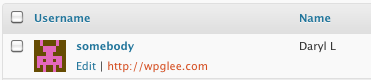
Need to quickly see more than the default information on the Users page? Here’s how to get and display each users website:

add_filter( 'user_row_actions', 'user_row_actions_show_website', 10, 2 );
function user_row_actions_show_website( $actions, $user_object ) {
	$actions['website'] = make_clickable( $user_object->user_url );
	return $actions;
}

Add Custom Post Type Totals to the “Right Now” Box

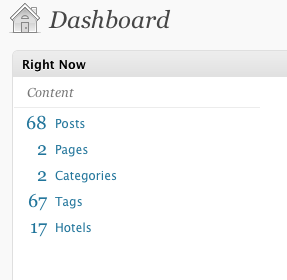
There’s a pretty convenient “at a glance” widget in the Dashboard called Right Now. But if you’re using any custom post types, you may have noticed they won’t show up there.

Naturally, we can fix that:

add_action( 'right_now_content_table_end', 'post_type_totals_rightnow' );
function post_type_totals_rightnow() {    
    $post_types = get_post_types( array( '_builtin' => false ), 'objects' ); 
    if (count($post_types) > 0)
    foreach( $post_types as $pt => $args ) {
        $url = 'edit.php?post_type='.$pt;
        echo '<tr><td class="b"><a href="'. $url .'">'. wp_count_posts( $pt )->publish .'</a></td><td class="t"><a href="'. $url .'">'. $args->labels->name .'</a></td></tr>';
    }
}

Upload to the Media Library From Your Plugin

There are a variety of reasons you may want or need to include an upload form inside your theme or plugin. One thing that bugs me, though, is when the image (or whatever) that I’ve uploaded isn’t available in the Media Library. I don’t want to have to reupload an image just so I can reuse it in a blog post.

The solution is pretty easy – let WordPress do the dirty work for you.

<?php
if ( isset( $_FILES[ 'some-file' ][ 'name' ] ) && !empty( $_FILES[ 'some-file' ][ 'name' ] ) ) {
    $upl_id = media_handle_upload( 'some-file', 0 );
    if (is_wp_error( $upl_id )) {
        echo '<div class="error"><p>'. $upl_id->errors['upload_error']['0'] .'</p></div>';
    }
    else {
        echo '<div class="updated"><p>"'. get_the_title( $upl_id ) .'" was uploaded!';
        echo wp_attachment_is_image( $upl_id ) ? '<br />' . wp_get_attachment_image( $upl_id ) : '';
        echo '</p></div>';
    }
}
?>
<form action="" method="post" enctype="multipart/form-data">
<p><input type="file" class="button" name="some-file" id="some-file" />
<input type="submit" class="button-primary" value="Upload"/>
<input type="hidden" name="submitted-some-file" /></p>
</form>

This is a very simple example, of course. Go play with it

Disable the Theme and Plugin Editors (and More)

It can be very risky to use the built-in theme and plugin editors – especially it you (or your client) don’t really know what you’re doing. Fortunately we can disable that pretty easily.

define( 'DISALLOW_FILE_EDIT', true );

Or, take it a step further and disable update abilities too

define( 'DISALLOW_FILE_MODS', true );

More Sorting Options for the Media Library

If you work with a lot of PDFs in WordPress, you may find the lack of a “view PDFs” link annoying, especially considering that you can separate image and audio attachments easily.

Fortunately, you can fix that.

add_filter('post_mime_types', 'add_post_mime_type');
function add_post_mime_type( $post_mime_types ) {
	//$post_mime_types['application'] = array(__('Doc'), __('Manage Doc'), _n_noop('Doc <span class="count">(%s)</span>', 'Doc <span class="count">(%s)</span>'));
	$post_mime_types['application/pdf'] = array(__('PDF'), __('Manage PDF'), _n_noop('PDF <span class="count">(%s)</span>', 'PDF <span class="count">(%s)</span>'));
	$post_mime_types['application/msword'] = array(__('DOC'), __('Manage DOC'), _n_noop('DOC <span class="count">(%s)</span>', 'DOC <span class="count">(%s)</span>'));
	return $post_mime_types;
}

Add Links to the Admin Bar

It can be really useful to add some custom links to the Admin Bar. Like, perhaps to the hidden-yet-awesome options.php page.

add_action( 'admin_bar_menu', 'additional_admin_bar_menu', 70 );
function additional_admin_bar_menu( $wp_admin_bar ) {
    if ( current_user_can('manage_options') )
    $wp_admin_bar->add_menu( array( 'id' => 'all-settings', 'title' => __('All Settings'), 'href' => admin_url('options.php') ) );
}

If you want to add a sub-menu item, you must add a “parent” parameter, and its value should match the ID of the parent element.

add_action( 'admin_bar_menu', 'additional_admin_bar_menu_child', 70 );
function additional_admin_bar_menu_child( $wp_admin_bar ) {
        $wp_admin_bar->add_menu( array( 'parent' => 'all-settings', 'id' => 'google', 'title' => __('Google'), 'href' => 'http://google.com' ) );
}

Override Rich Edit Setting

It’s very easy to override the user-selected rich edit setting. Whether they’ve selected to show it or hide it, it can be reversed in a single line of code:

Always show:

add_filter( 'user_can_richedit', '__return_true' );

Always hide:

add_filter( 'user_can_richedit', '__return_false' );

Of course, if you’re going to overwrite this setting, it would make sense to also hide the user’s checkbox for this option.

add_action( 'admin_print_styles-profile.php', 'hide_rich_edit_option' );
add_action( 'admin_print_styles-user-edit.php', 'hide_rich_edit_option' );
function hide_rich_edit_option() {
    ?><style type="text/css">
    label[for=rich_editing] input { display: none; }
    label[for=rich_editing]:before { content: 'This option has been disabled (Formerly: ' }
    label[for=rich_editing]:after { content: ')'; }
    </style><?php
}

You can probably remove it more fully with Javascript, but I’ll leave that up to you.